

ServiceWorker.js file restrictions
- The serviceworker.js file is available in the root directory; if not, Web Push will not work on all the pages.
- Ensure that the service worker file is exactly named serviceworker.js. Otherwise, refer to rename serviceworker section.
Option 1: Create a serviceworker.js file
Create a file named serviceworker.js and place it in the root directory. Copy the cdn link according to your dashboard host.
Then add the following content in the serviceworker.js file. Replace the string inside the double quotes with the link that you copied.
In case you are using NPM, use the version number of @moengage/web-sdk dependency that is in your package.json file. eg: if version number of @moengage/web-sdk is 2.55.2 and your dashboard host is dashboard-03.moengage.com, then the content of your serviceworker file will be-
importScripts("https://cdn.moengage.com/release/dc_3/versions/2.55.2/serviceworker_cdn.min.latest.js");Option 2: For GTM (Google Tag Manager) integration only
Right-click and download to save the file in the root directory. If not placed in the root directory, please specify the Serviceworker custom path and/or Serviceworker scope accordingly.Option 3: If you have passed the useLatest: true flag in NPM initialisation config
Right-click and download to save the file in the root directory. If not placed in the root directory, please specify the swPath and/or swScope accordingly.Rename the Service worker custom filename
If you wish to change the serviceworker.js file name depending on the browser or environment, use the following initialization block:Service worker Scope
The scope of the service worker determines which files the service worker controls; in other words, from which path the service worker will intercept requests. The default scope is the location of the service worker file and extends to all directories below. So if serviceworker.js is located in the root directory, the service worker will control requests from all files in this domain. You can also set an arbitrary scope by passing in an additional parameterswScope when initializing.
For example:
/a/, which means the service worker will control requests from pages like /a/, /a/lower/ and /a/lower/lower, but not from pages like /a or /, which are higher.
Bypassing serviceworker scope
If you are not able to place the serviceworker.js file at the root of your app but still want it to be available throughout the app, then you have to pass*swScope* as in the following snippet when initializing:
Disable WebPush
By default, the Web Push module is enabled for all the users. If you do not want to use it, then you have to disable it explicitly. Passdisable_web_push: true to the initialization config to disable the Web Push Notification module:
Troubleshooting
Registration Error
If you get the error Error in Subscription: DOMException: Registration failed - storage error, then you are unregistering the serviceworker.js somewhere from your code. Search forunregister() in your codebase and remove it.
Push Notification or serviceworker.js not working
Follow these steps:- Ensure to add the MoEngage serviceworker code to your serviceworker.js file.
- Ensure to add
swPathwith the path of the serviceworker.js file while initializing the MoEngage script.
I am not getting Chrome Push Notification on my Mac.
If your Chrome is in full screen on Mac OS, you cannot see any Chrome Push notifications. This is a known issue with Chrome full screen on Mac OS, and we will update you when it is fixed by Chrome/Apple.My Users are not able to see Web Push Notifications.
To correctly receive and view Web Push Notifications, the notifications need to be enabled for the browser through the OS settings. It may have been blocked at the OS level. Make sure it is enabled. In this case, the browser will try to show the notification; hence, the events and impressions will be tracked. But the OS will block it. Refer to this image: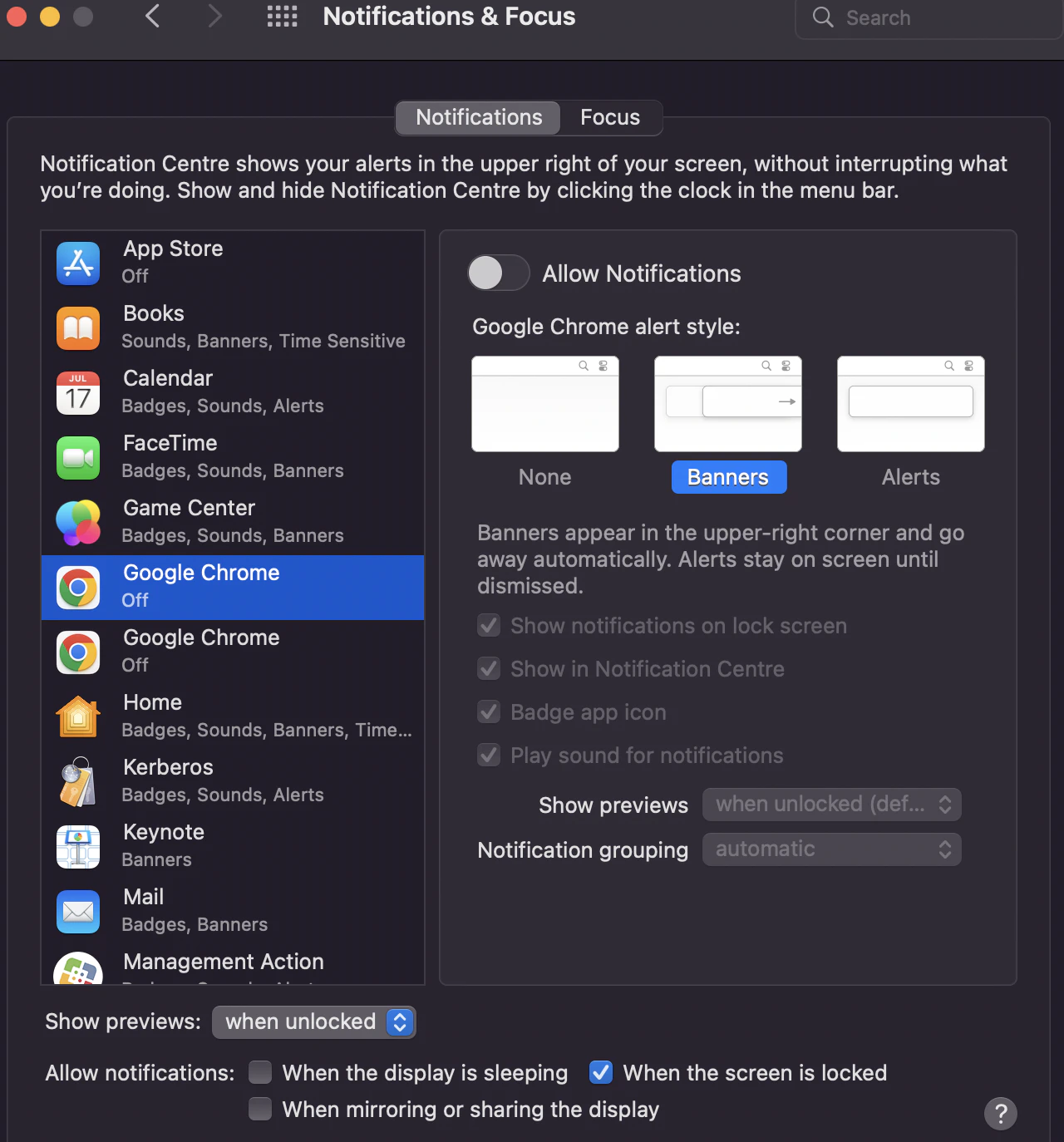
How do I test Web Push Notifications?
Many times before creating a Web Push campaign, you may wish to see how the push message appears. To do the testing, use the Device Push Token in Campaign Creation -> Scheduling & Goals tab -> Test Campaign section. To find your Device Push Token for your website on the Chrome browser, follow these steps:- Go to your website where you have given the push permission.
- Right Click —> Inspect
- Click on the Application tab.
- On the left pane under Storage, click on Local Storage
- Under Local Storage, click on your HTTPS Website URL or HTTPS Subdomain (https://yourwebsite.moengage.com) for your HTTP Website
- You will find a Key MOE_DATA. Look for the
PUSH_TOKENfield. Copy the corresponding Value and paste it under Test Campaign Section -> Device Push Token.
I am not able to render the web push notification badge icon; it just shows as an empty white square.
The Android documentation states, “Update or remove assets that involve color. The system ignores all non-alpha channels in action icons and the main notification icon. You should assume that these icons will be alpha-only. The system draws notification icons in white and action icons in dark gray.”To convert your icon to an Android-compatible format-
- Open your notification icon in any image editor
- Convert all parts of the image that you don’t want to show to transparent pixels. All colors and non-transparent pixels are displayed in white. Therefore, only Alpha channel (black & white) images are supported, and RGB images are not supported
- The resolution of the image should be 72x72 or higher
- Save the image in one of the following filetypes only- png, gif, webp, ico, cur, bmp
